How to Lock Apps While Studying
You sit down to study, open your notes, and twenty minutes later you're deep in a social feed with no memory of how you got there. Willpower isn't the problem. Your phone is built to win that fight. The fix is to stop fighting and lock the apps before the session starts.
Why locking apps works better than willpower
Every time you resist checking your phone, you spend a little focus. Do that dozens of times an hour and you're tired before you've learned anything. Locking apps takes the decision away. If the app won't open, there's nothing to resist.
It also helps with the tiny automatic checks: unlocking your phone "just to see the time" and ending up somewhere else. A lock puts a speed bump in that habit, and usually that's enough to make you notice what you're doing.
Decide what to lock first
Before touching any settings, spend two minutes sorting your apps into three groups:
- Always allowed: things you actually need, like calls, your calculator, a flashcard app, or your class portal.
- Locked while studying: social media, video, games, news, and shopping.
- Gray area: messaging and email. Lock these too unless you're coordinating a group project. You can check them on breaks.
Be honest about your worst offenders. If you always end up on one specific app, that's the one to lock hardest.
Option 1: App Limits
Both iPhone and Android have built-in features that let you set daily time limits for distracting apps like TikTok, Instagram, and YouTube. Once you reach the limit, the app is restricted for the rest of the day unless you override or change the limit.
On iPhone (Screen Time)
- Open Settings → Screen Time.
- Tap App Limits → Add Limit.
- Select the apps you want to restrict.
- Set a daily time limit, such as 1 minute.
- Tap Add to save your limit.
On Android (Digital Wellbeing)
- Open Settings → Digital Wellbeing & parental controls.
- Tap the screen-time chart or Dashboard.
- Select the app you want to limit.
- Tap App timer or the hourglass icon.
- Set a daily limit, such as 1 minute, and tap OK.
Option 2: Built-in App Blocking (iPhone and Android)
Both iPhone and Android offer built-in features that can restrict distracting apps during specific hours, making them useful for studying.
On iPhone: Screen Time Downtime
- Open Settings → Screen Time → Downtime.
- Turn on Scheduled and choose your study hours.
- Go to Screen Time → Always Allowed and select the apps you still need.
- Enable Block at Downtime, if available, to enforce the restrictions.
Note: Menu names may vary by iOS version.
On Android: Focus Mode
- Open Settings → Digital Wellbeing & parental controls.
- Select Focus mode.
- Choose the apps you want to pause, such as TikTok, Instagram, or YouTube.
- Tap Turn on now or Set a schedule to activate it automatically during study hours.
Option 3: A Dedicated Study Focus App
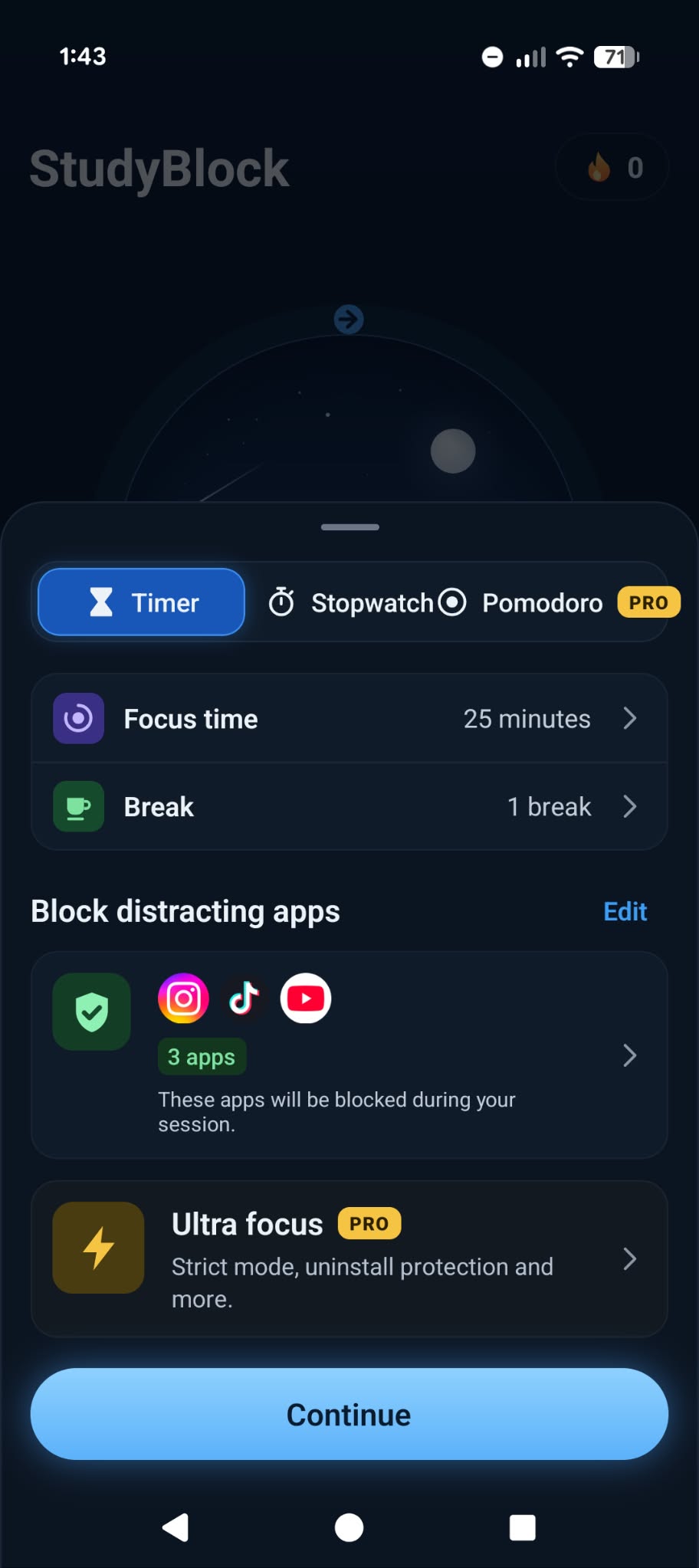
Options 1 and 2 are good, but the best way to block apps while you study is probably to use a dedicated app. Apps like StudyBlock allow you to block distracting apps while you study.
- Start a study session.
- Select the apps you want to block.
- Press Continue, then Start Focus.
Once your study session is started, you won't be able to open the distracting apps you selected until your study session is over.

Download StudyBlock
Block distracting apps and stay focused while you study. Available on iOS and Android.
The bottom line
You don't need more discipline to study well. You need fewer chances to get distracted. Pick your worst apps, lock them with the tools already on your device, make the lock hard to undo, and give yourself planned breaks. Start with one session today and see how much more you get done.